Add a twitter widget to your web site
Freeola InternetGet Dotted DomainsChat & Gaming
InstantPro Tutorials
Adding Twitter to your InstantPro Web Site

If you have your own personal Twitter account, or even an account for your business, you are able to integrate this account with your InstantPro Web Site so that your friends or customers can keep up with your latest updates via your web site.

This is done by using one of the Widgets that Twitter make available.

You can create your own profile widget which can be customised to match your InstantPro colour scheme. You can then add this to your web site using code generated by Twitter to either the main content area of your web site or in to a Skyscraper so that your Twitter updates will show either to the left or right of your web site.

This tutorial will deal with adding third party code in to InstantPro, and creating a new Skyscraper for your InstantPro web site. Before proceeding we suggest you familiarise yourself with the Adding HTML code tutorial and the Skyscraper tutorial so that you are comfortable with some of the steps this tutorial will contain.

To intergrate this feature with InstantPro you will need to have a Twitter Account, for which you will have to agree to their terms and conditions.

1. You will first need to visit the Twitter Widgets page where you will be able to choose the type of widget you wish to add.

Twitter Widgets
Click image to view full-size

You will need to click the My Website option on the first page. This option is highlighted above.

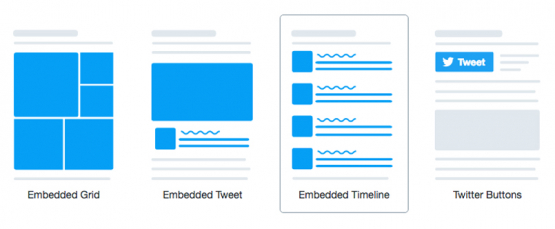
2. Once you have selected this option you will be able to choose the type of widget you wish to add.

Choose the type of Widgets
Click image to view full-size

For the tutorial the Profile Widget will be used. Once added to the InstantPro web site it will display the most recent Twitter updates on the tutorials web site.

3. You will next be taken through setting up the widget for display on your InstantPro web site.

Settings

On the settings page, you will have to specify your Twitter username.

Specify the username
Click image to view full-size

The InstantPro Tutorials twitter username is Instantproguide, so that has been entered in the box on this page.

After you have entered your username, you will need to click the next option on the left - Preferences.

Preferences

The preferences page allows you set what appears on your widget.

Set Preferences
Click image to view full-size

It is possible to set how may tweets appear on the page, also whether a scrollbar is included and timestamps from recent updates.

Set these options as you require and move on to the next option shown on the left of the page.

Appearance

The appearance page allows you to set the colours for each element contained on your widget.

Set Appearance
Click image to view full-size

You are able to set the colours for each element which will appear on your widget. When you make changes you can click the Test Settings button shown at the bottom of the page which will apply the changes to the example widget shown to the right.

You can keep making changes until you are happy with how your widget appears. The example shown on the right in the image above shows how the colours I have chosen effect the appearance of the widget.

Dimensions

After the colours have been chosen you will next be able to choose the size of the widget which will appear on your web site.

Set Dimensions
Click image to view full-size

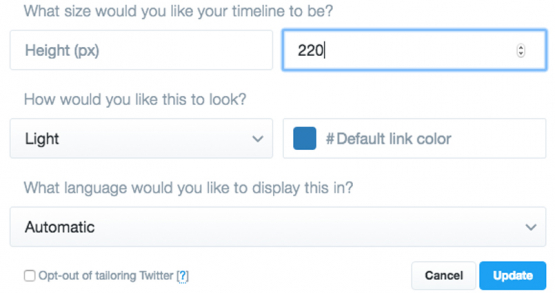
In this section you can choose the height and width of the widget, or just let the dimensions adjust automatically according to the content contained within it.

The Test Settings feature does not work for this section, so once you have defined your dimensions click the Finish & Grab Code button on the page.

4. Now you will be shown the code for your Twitter widget.

Widget Code
Click image to view full-size

It is this code which will need to be added in to the InstantPro Web Site Builder so that the widget is displayed on your web site.

You will need to highlight the code shown on the page and click the right mouse button and select the Copy option. If you are a Mac user you will need to hold the Cntrl key and click the mouse button to select the copy option.

5. Now you have the widget code you will need to open the InstantPro Website Builder from within your MyFreeola account.

We'll start at the Site Overview screen.

Site Overview Screen
Click image to view full-size

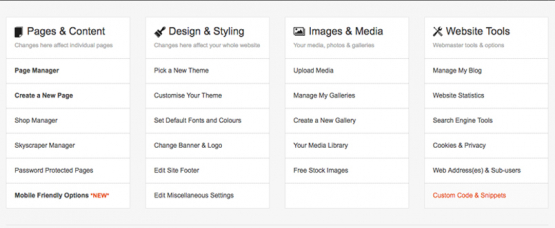
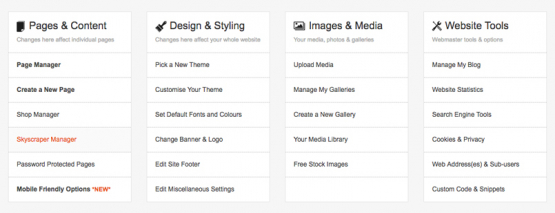
The Twitter widget we created earlier will be added to a new Skyscraper on the tutorials web site, so you will need to select Skyscraper Manager from the Site Overview screen.

As mentioned in the introduction, if creating Skyscrapers not something you have done before we suggest reading the Skyscraper Tutorials for more information.

6. Rather than edit an existing Skyscraper a new skyscraper will be created.

Create a New Skyscraper
Click image to view full-size

Creating a new skyscraper can be done by clicking the Create New Skyscraper box as is highlighted in the image above.

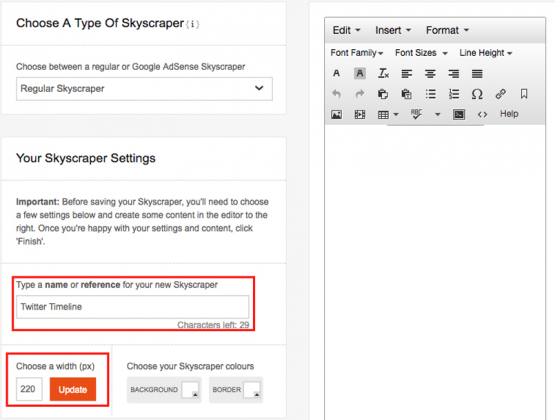
7. You will then be taken to the Skyscraper Editor. You will need to ensure the Skyscraper type is set to Regular Skyscraper.

Skyscraper Editor
Click image to view full-size

You will need to define a name for the new skyscraper and also set the width. Please ensure that the width value you set here is at least equal to the value specified when setting the dimensions earlier in the guide.

If you set a width value for your skyscraper which is less than that specified when setting the dimensions your widget will not appear on the page correctly.

You are also able to set a background colour, and border colour for the skyscraper. For the tutorial these items have both been set to white.

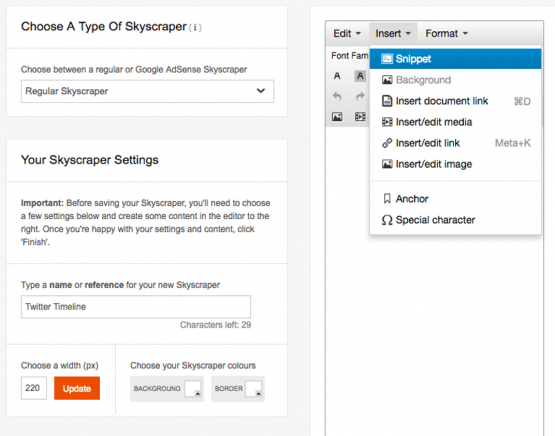
When all of these items have been set, you will need to click the HTML button shown within the Skyscraper Editor options on the left. The button you will need to click is highlighted in the image above.

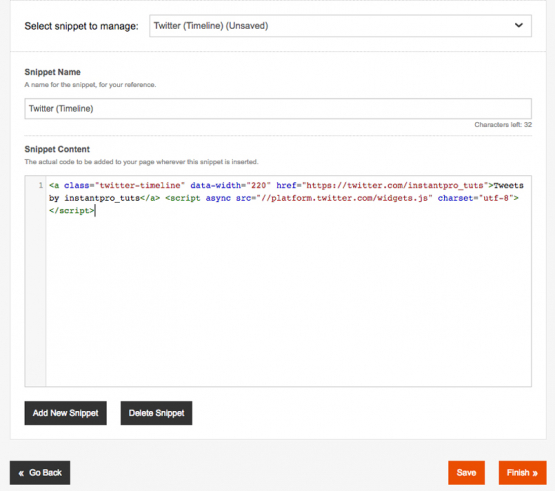
8. You will now be shown the HTML editor. You will need to paste the code generated by Twitter in to this box. It will appear similar to that shown in the image below.

Skyscraper HTML Editor
Click image to view full-size

To paste the code you highlighted earlier you can click the right mouse button after placing the mouse cursor within the box, and select the paste option, or alternatively you can use the keyboard shortcut of holding the cntrl key and pressing V.

Once the code is pasted in click the Update button shown in the bottom right corner of the HTML editor. This will add the code to the skyscraper and return you to the Skyscraper Editor.

9. After you have added the HTML code you will see that there is no content shown in the Skyscraper Editor.

Code Added to the Skyscraper
Click image to view full-size

This is to be expected, because the code that has been pasted in will only work on the live site as it gets the information required from the internet. The Twitter widget cannot get the required information within the Skyscraper Editor.

You will need click the Save button, and then the Finish button to save the skyscraper.

10. Now the skyscraper has been created it will need to be assigned to a page on the web site so that it is visible on the internet.

Assign the Skyscraper to a page
Click image to view full-size

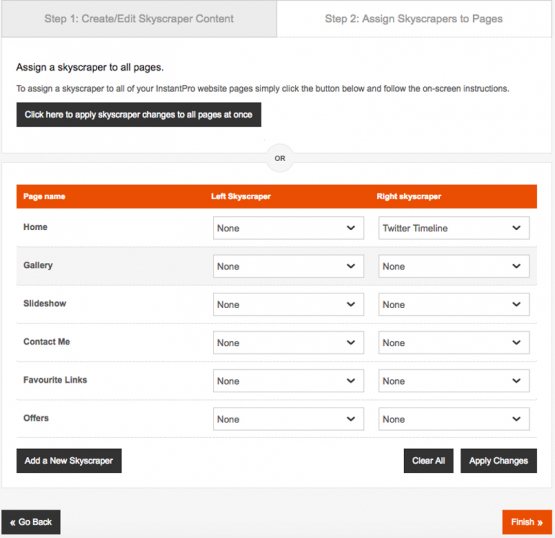
You will be able to assign the skyscraper to a page on your site from within the page list shown in the Skyscraper Manager. Just pick the appropriate skyscraper from those shown in the drop down list.

The Skyscraper manager allows you to set your skyscrapers to appear either to the left or right of your web site. The twitter widget designed throughout this tutorial will be set to appear to the left. You will also notice that there is another skyscraper named Twitter Search assigned to the right of the page. This is another twitter widget available which searches for references made to 'Freeola' from within Twitter updates.

Once the skyscraper has been assigned to a page, click the Finished button which is shown under the Create a new Skyscraper button. This will return you to the Site Overview screen. From here you can select the View Site link shown in the top right corner of the screen to preview your Twitter widget on your InstantPro web site.

Twitter Widget live on the page
Click image to view full-size

The image above shows how the widget created during this tutorial appears on the tutorial web site.

You can also view the Twitter widget on the InstantPro Tutorials web site.

Standard Pages

You can also add this feature in to Standard pages. The steps required for this are much the same as have been explained above, however there are some slight differences.

You will need to open the page to which you wish to add the widget within the InstantPro software. This will open the page within the InstantPro Text Editor.

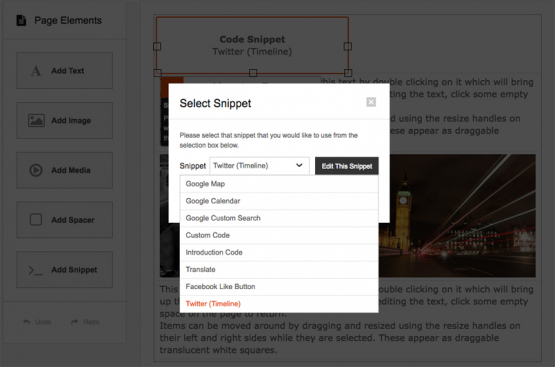
To add the Twitter Widget code in to your web page you will need to select the HTML icon from the Text Editor to open the HTML editor. From here you will be able to paste the code directly in to the source code of the page so that the widget will appear in the main content area of your site.

Once the code has been added click the Update button shown on the HTML editor and save the changes made to the page.

As with the skyscrapers you will not be able to preview the widget until you view the page live on the internet.

If you already have a large amount of content on your page and are unsure as to where to place the Twitter code in relation to the other HTML, you will need to read the Adding HTML tutorial to further understand HTML code and therefore enable you to add the code in the correct area of your web page.