
SEO in InstantPro
Last updated on by Freeola Support
4 out of 4 people found this article useful.
Important Information
This guide is for the Freeola InstantPro Website Builder. This service has now been replaced by a more modern product, RQS, and therefore is no longer updated with new features.
To build your website in RQS for free, please click here or visit the RQS Builder section of your MyFreeola Control Panel.
Search Engine Optimisation (SEO) is the process of optimising websites to perform well in search engines, so that they appear closer to the top in search results.
InstantPro offers the option to add both Meta Keywords and Meta Descriptions to all pages you create.
Carefully choosing words that people are likely to search for (Keywords) and using these in your Meta Keywords & Descriptions, will help search engines to relate your page to the search words or phrases you have defined.
It is important to include your chosen Keywords & Phrases in your pages content, such as body text, headers and 'alt text' of images.
Step 1
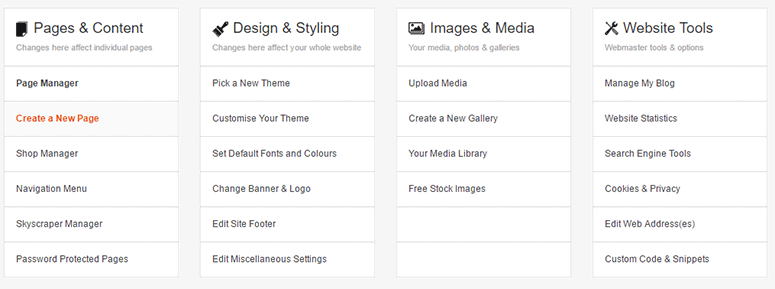
From the Main Menu, select Create a New Page from under the Pages & Content heading.
Step 2
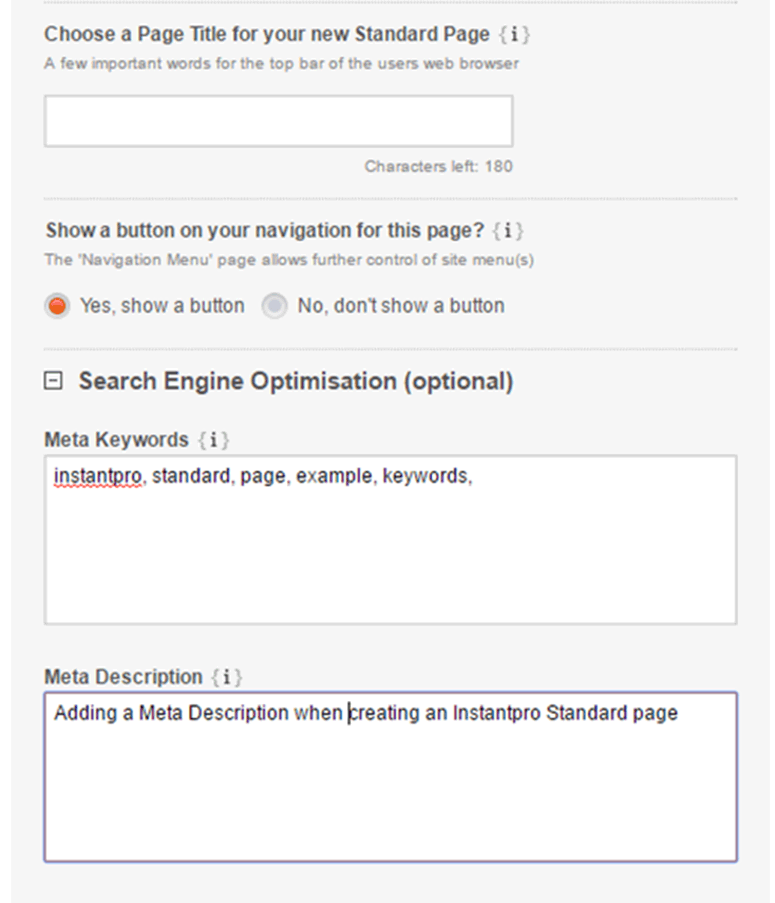
Once you have selected a page type to create, under the Navigation Text & Page Title, there is a Search Engine Optimisation button, which will open when you click it. Once you have entered the information into the Meta Keywords & Description fields, click Next and continue creating your page.
Step 1
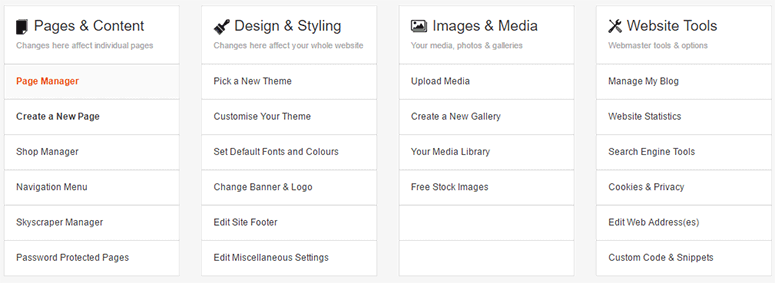
From the Main Menu, select Page Manager from under the Pages & Content heading.
Step 2
Click the Edit button to the right of the Navigation Text (of the page you want to edit).

Step 3
Click the Page Settings link in the InstantPro header, then select the Meta Settings tab. Here you will be able to edit the information in the Meta Keywords and Meta Description fields. Once you are happy with this information click Update.

You can specify 'alt' (alternative) text for images that you use. The purpose of these tags is to display alternative text for visitors, should the image fail to display properly. Search engines will also look at this information when identifying the content of your page.
Step 1
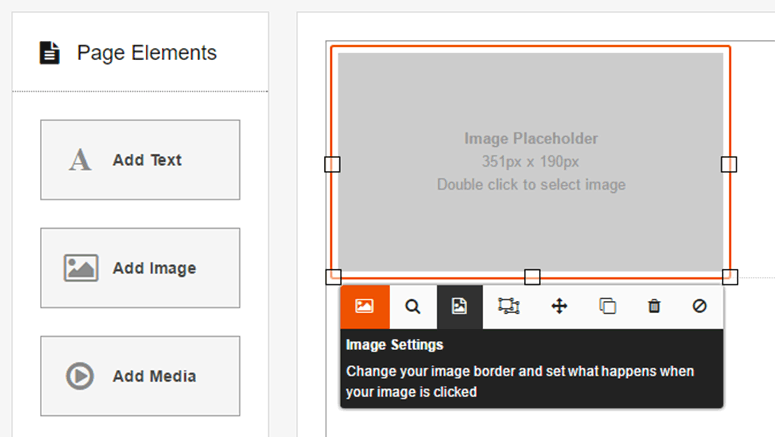
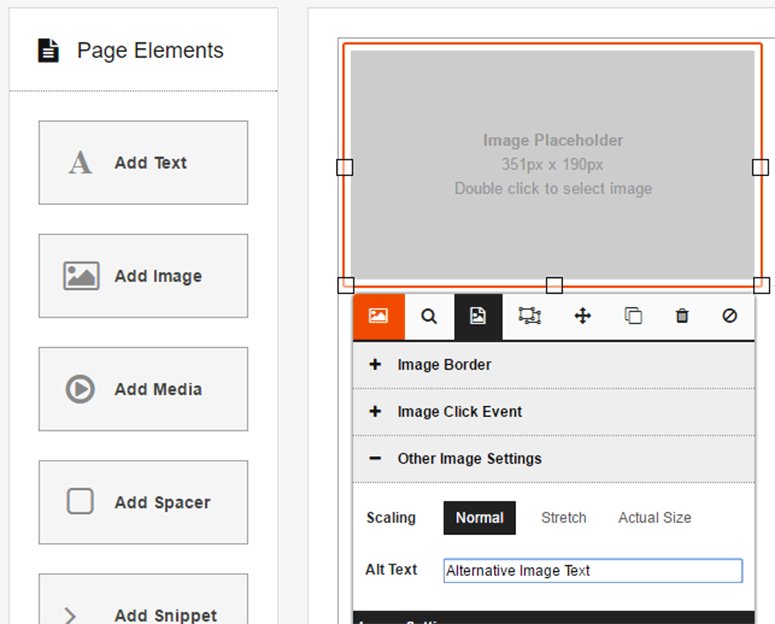
From the Page Manager select the page that you want to Edit. You will now be in the Drag & Drop Editor. Select the image that you want to add Alt Text to by clicking it, from the toolbar, which will appear below the image, click the Image Settings Icon (as shown in the image below).
Step 2
Now click Other Image Settings, there is a field titled Alt Text, type in the text you want to appear - this should be a brief description of what the image is.
If you have already created a gallery page, you may want to assign image titles and alt text to images displaying there. To do this, follow the steps below.
Step 1
From the Main Menu, select Manage My Galleries under the Images & Media heading. Then select the gallery page you want to edit images in.
Step 2
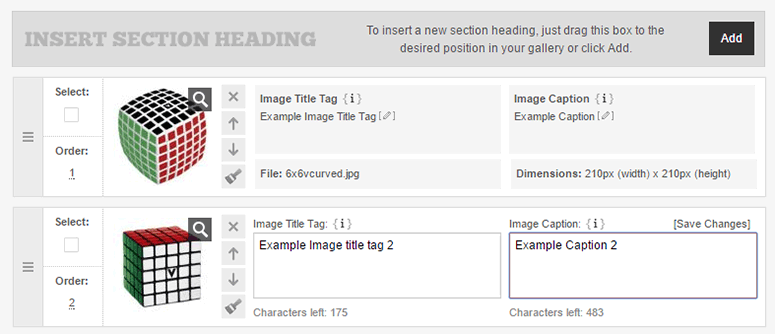
Now you will see all the images in the gallery you have chosen to manage. Next to the image, there is an Image Title Tag field; enter your Alternative Text here. Once you have filled in the Image Title, click Finish from the bottom right of the page.
Remember that the web address (URL) of your page will also be taken into account by search engines. When creating new pages, you can include keywords or phrases in the Navigation Text, to help search engines define what your content is about.
For more information, please see the Publishing/Unpublishing & Editing Page Names Tutorial.
To stop search engines finding unfinished pages, you can choose to unpublish a page from the Page Manager by Unticking the box under the Online heading.
For more information on the above, take a look at our Publishing/Unpublishing & Editing Page Names Tutorial.
A Sitemap is like the index of a book. Search engines generally only follow a finite number of links on a web page, so if a site is particularly large, a sitemap may be required, so search engines can access all of the content on the site.
For help with creating a sitemap, take a look at our Creating a Sitemap Tutorial.
Getting back links from other sites makes search engines think that your website has good content on it, that others may find useful, and can help to boost your placement in search results.
Register your site today to get listed in our Customer Sites Directory.
Google have a useful Webmaster Tools service that allows you to optimise your Website for Google. You can submit a sitemap, find out how Google finds content on your website and research what people are searching for on Google. This can be incredibly useful for selecting the right keyword to use on your site.
To find out how to verify your InstantPro website, take a look our guide on Using Google Webmaster Tools.
Live Chat is offline
Live Chat is available:
9:30am to 5:30pm Monday to Friday (excluding bank holidays).
It appears you are using an old browser, as such, some parts of the Freeola and Getdotted site will not work as intended. Using the latest version of your browser, or another browser such as Google Chrome, Mozilla Firefox, Edge, or Opera will provide a better, safer browsing experience for you.