How to create a Links page
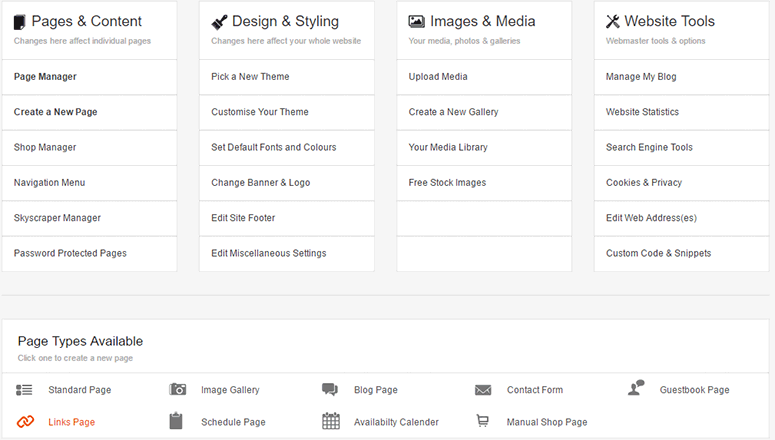
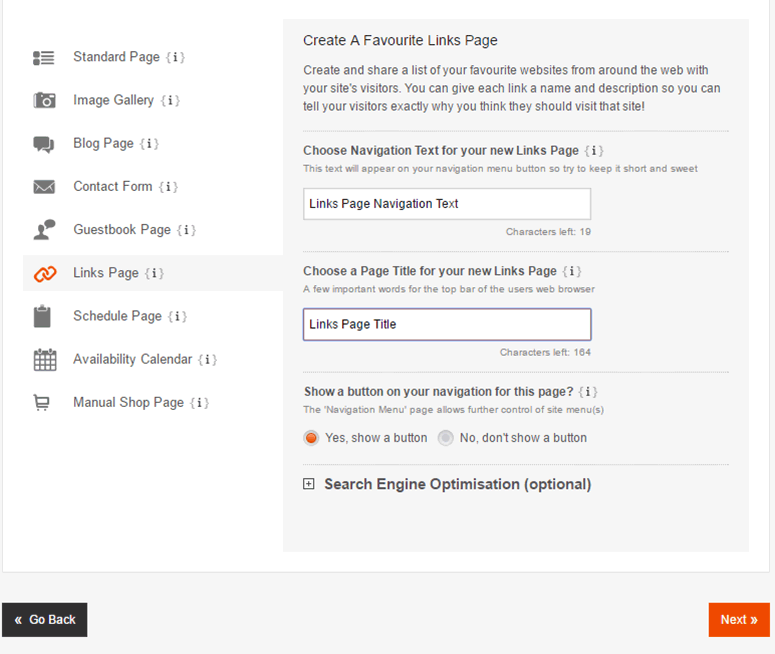
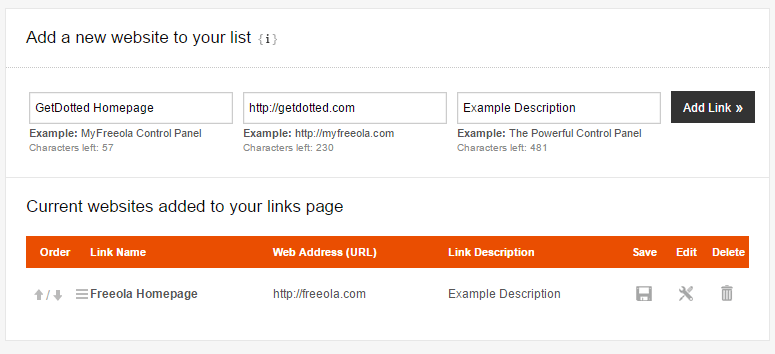
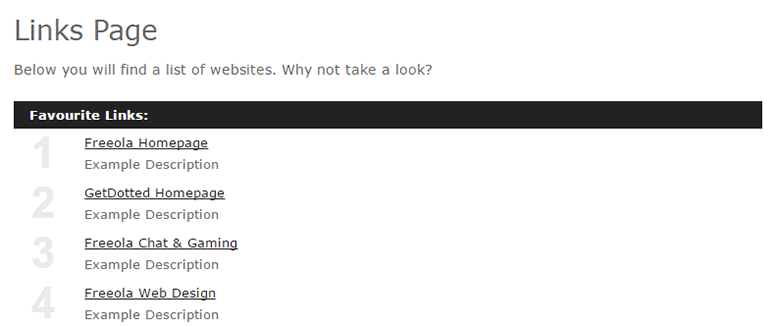
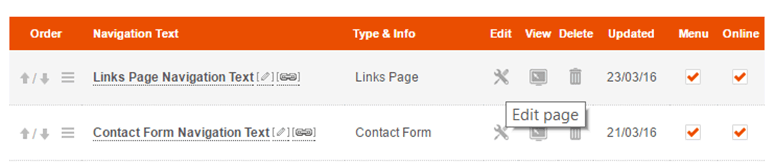
A links page is a simple page on your website on which you can link to your own favourite websites or to other companies to show your visitors what you like, or what might be relevant or useful to them A links page can be a really good source of information for your visitors. Maybe your are a driving instructor and need to direct your pupils to information on a test booking facility. This is information that is useful to your visitors but that you probably can't provide on your own website. This is where creating a Links Page can help! Creating a Links Page using the InstantPro Website Builder is really easy to do, and by the end of this tutorial you will be able to create a Links Page for your InstantPro site. 1. Firstly, you will need to open the InstantPro Website Builder from within your MyFreeola account. We'll start at the Site Overview screen, where you'll need to create a new page. 2. Once you click the create new page button on this screen, you will be asked to choose the type of page you wish to create, the name of the page, and the title header of the page.You will need to select Links as the page type, but it is up to you what you wish to name your page, for the example I have just used 'Links' and 'Links - InstantPro Tutorials' respectively. 3. Once you have added your page name and title header, you will need to click the next step button. Defining a good, appropriate page name, and title can help when search engines look at your pages, more information on this can be found in the InstantPro Search Engine Optimisation tutorial. The SEO tutorial also discusses the options found under the "Show Advanced Settings" option too. 4. You are now creating a new Links Page! In the picture above you will see I can specify a Link Name, a Web Address, and a Link Description. The example image below has been completed as a link to the Freeola Homepage. You can see in the Link Name field I have entered Freeola. This is how my link will be displayed for visitors to my Links Page. In the Web Address field, I have entered the FULL address of the Freeola website "http://freeola.com". This sets the address to which you are linking. The Link Description box allows you describe the content that people will find when they follow your link. 5. Once all this information has been entered, click the Add Link button.You will then see the link you have created, but also be given the option to add more links to your new Links Page. As in the image below: For the tutorial, I will only add this one link, but you can add as many links as you want to! 6. To finish, I will click the 'Finish' button. This will take me to the Page Manager section of the InstantPro Builder.In addition to the list of pages that you have already created for your instant site, you will see this message at the top of the screen: This is to tell you that your Links Page has been created successfully. Below you can see how the Links Page on the tutorial site appears, why not now take the time to view the new Links Page that you have created? 7. To personalise your Links Page further, you might also want to change the Introduction text at the top of your Links Page: In the page manager, you will need to select the edit page option - which is shown as a piece of paper and a pencil. 8. You will now be taken to edit your Links Page. You will see at the top of the page, above your links, there is the option to edit the introduction text. 9. Click the "Edit Intro Text" button. This will take you into the text editor so you can edit the introduction text. 10. Using the text editor you can completely customise the introduction for your Links Page. The text editor works in the same way in this situation as it does when you are designing your other pages. If you are new to InstantPro, we suggest you read the InstantPro Text Editor guides which explain how to use all the features available within the text editor. When you have finished personalising your Links Page, you will need to click the Save button. When you click save, you will see the page saved confirmation message. ![]() You can then click Finish. You will be taken back to the screen shown in the picture under step 8. If you are all done with your Links Page, click the Finish button in the bottom right corner and you will be taken back to the page manager screen. The picture below shows how your finshed Links Page, with customised introduction text, could look! Managing your Links
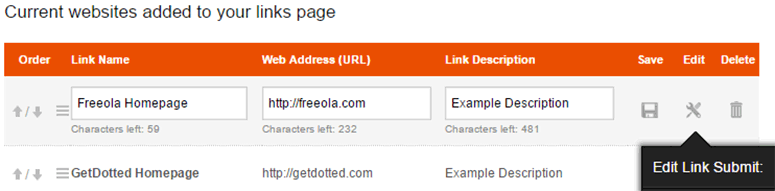
Once you have created your links page, you may find you have many links contained on it and would like to adjust the order of the links so your preferred sites can stay at the top of your list. The screen above shows a links page with numerous links contained on it. To adjust the order in which the links appear on your page, you only need to click the up or down arrows shown to the left of the link name in the image above. You can also edit the link name, address and description by clicking the If needed, you can also delete links should they become outdated, or no longer required. This is done simply by clicking the cross shown under the Delete heading. Custom Links Page
If you would prefer to create your own custom links page, you can do this by using the Standard page type and creating Hyperlinks on the page. If you are unsure about how to do this, read our Hyperlinks Tutorial . A Links Page also has more than just one use! You can also use a Links Page to create a sitemap for your InstantPro Website. Don't forget to use the |