Embedding Google Maps in to your InstantPro Website.
As you are most likely aware, Google offer many more services that just a simple Search Engine.
Some of the services which are offered by Google, such as Maps and Calendars, allow you as the user to add this content on your own website by embedding some pre-prepared HTML code.
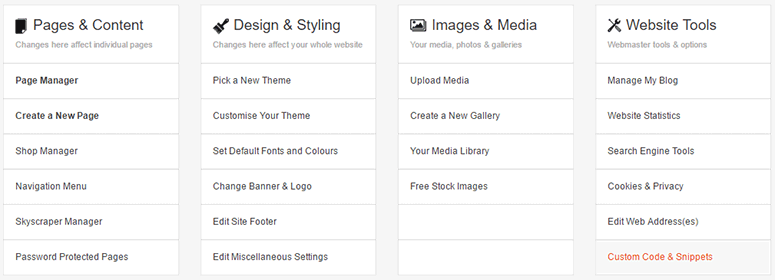
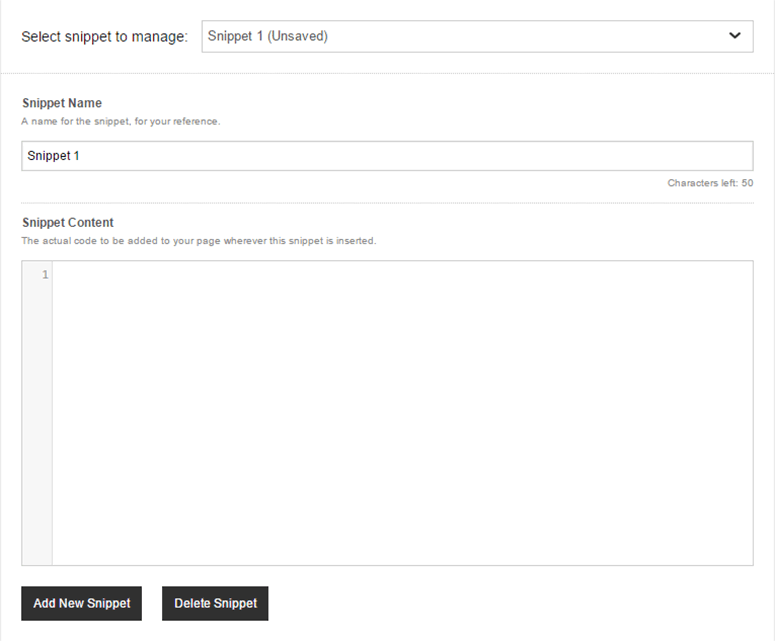
Adding HTML code in to your InstantPro Website has been covered in a previous tutorial. So that you are aware of the topics this guide will cover we suggest you read the
Adding HTML Tutorial before reading any further.
This guide explains how to add Google Maps to your Instant Pro site.
In order to follow this tutorial you will need to
Log in to your MyFreeola account
and open the InstantPro Website Builder from within your account.
Google Maps
1.
The first thing you will need to do is to visit the
Google Maps
page and find the location you wish to add on your site.
2.
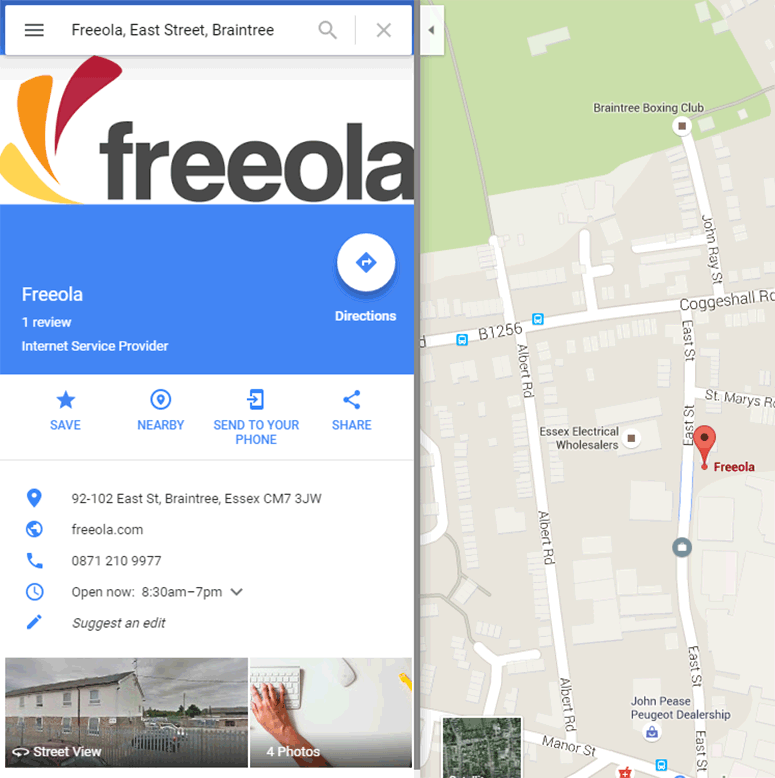
Once you have found your location on the Google Maps page you will see a screen like the one shown below. For the tutorial the location has been set to the main address of Freeola.
Click image to view full-size
You will notice that there is a
Link button in the top right corner. Click this button and you will see a box displayed as in the image below.
Click image to view full-size
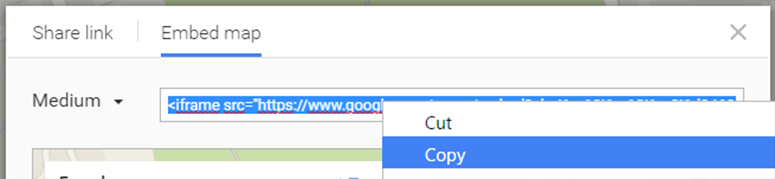
The information that you will need in order to embed the Map in your InstantPro Website is shown under the
Paste HTML to embed in website heading, highlighted in the image.
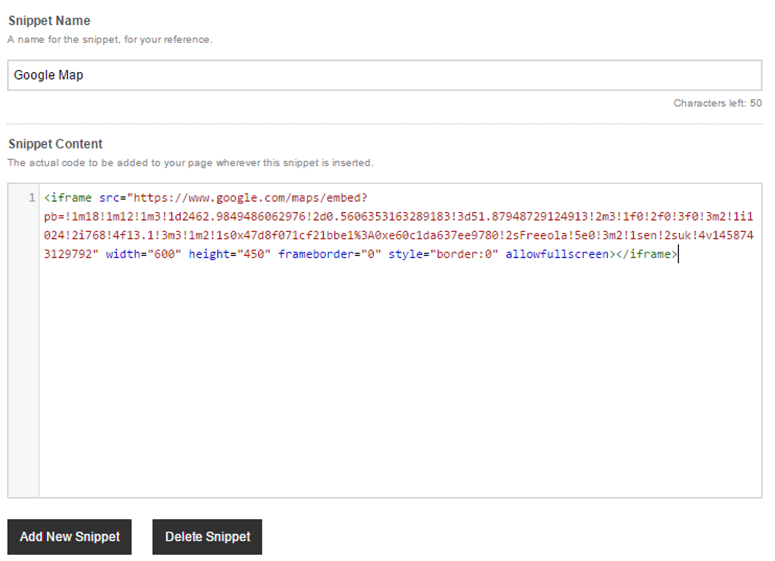
This HTML code will need to be copied from this page and pasted in to the HTML source code of your InstantPro web page on which you wish to add the map.
Google also give options for users to use a custom the map on their site. Click the Customise and Preview link to personalise your map and create the specific HTML code.
3.
For the tutorial, a contact/feedback page has been created, and as part of the introduction to this page a postal address along with a map will be added to the page.
The image below shows where the map will be placed on our page.
Click image to view full-size
In order to add the map code to the page, click the HTML icon which is highlighted in the above image.
4.
You will be shown the HTML source code of your web page, which will appear much like the image below.
The image below gives an example of where to place the HTML code from Google. Once the code has been pasted in, click the
Update button to apply the changes and view how the map appears on your page.
Click image to view full-size
It is important to ensure that the HTML code for the map is added to your page at the right point, otherwise you may add it in the middle of some other content!.
A brief explanation of where to add the code is contained in the example image, though for a more in depth explanation of the layout and function of HTML code you could read
the tutorials available covering
Understanding HTML in InstantPro and the
Basic HTML coding
.
Once you are happy with where the code should be pasted, simply paste the code in normally as if you were Copying & Pasting using a standard word processing program.
5.
The code which was supplied by Google has now been pasted in to the InstantPro HTML editor. The example image below has been noted to explain why the code was added in that particular location.
Click image to view full-size
Once the code has been added you will need to click the Update button to update the page content.
6.
The text editor will show the map as
Loading.....
, so you will need to save your changes and view the page on your live site.
The image below shows how the map is displayed on the example page
Click image to view full-size
Although this appears perfectly clearly on the page, the map is perhaps a little too large for this page. It is possible to adjust the dimensions of the map to whatever size is required.
In order to adjust the size of the map, it is necessary to view the HTML source from within the InstantPro text editor again.
7.
To change the dimensions of the map, you will have to edit the html which was pasted from Google. The image below shows where you will need to make changes to the code.
Click image to view full-size
As you can see from the HTML code, the map has had its dimensions specified manually.
To adjust the map so that it better fits with the content on your pages simply adjust the height and width values to suit your page.
The height and width values for the map on the example contact page have now been set to: Height="250" and Width="350".
Click image to view full-size
The above image shows how the map appears on the feedback page. You will see that even though the map is contained on your web site you still have the option to change the view from a standard map to a satellite or terrain view, and you
also have the ability to zoom in and out and scroll around the map too.
Finished
You have now successfully added the Map to your Page. You can also
add a Google Calendar too!