Adding Google Custom Search to your web site
Freeola InternetGet Dotted DomainsChat & Gaming
InstantPro Tutorials
Adding Google Custom Search with AdSense to your InstantPro Website

As you may have read in the Google AdSense Skyscraper tutorial, it is possible to add adverts on your web site through which you can earn a small amount of money when these adverts are clicked by visitors to your site.

In addition to this you are also able to add a custom search facility to your web site where adverts are displayed on any search results provided by the Custom Search.

You can use the custom search to search either the entire web or a selection of web sites which you define. You can even just have visitors search the content on your site!

You will need a Google AdSense account to add the Custom Search with AdSense. For the beginning of this tutorial you will need to log in to your AdSense account.

1. When you log in to your Google AdSense account, you will first be presented with the account overview screen.

Login to Adsense
Click to view full-size

In order to begin setting up the Custom Search with AdSense facility you will need to select the AdSense Set Up tab, shown second in from the left in the image above.

2. On the following page you will be able to choose from a number of different AdSense options.

Adsense for Search
Click to view full-size

As is highlighted in the image, you will need to select the AdSense for Search option.

3. You are now able to begin setting up your own unique Google search to appear on your web site.

Define the Search
Click to view full-size

The first option you are able to define is the Search Type - You are able to specify whether any search carried out using your custom search will search the entire web, or whether it will just be web sites which you specify.

The option selected for the tutorial, is "Only Sites I select", which allows us to add the sites which will be included in our custom search.

You are also able to add optional keywords which will, in Google's words, "tune the search engine results and ads to match your site content".

Those mentioned already are the main options which you will need to define, once these are defined, you are able to choose further details such as the language of your web site, or whether you use google.com, or google.co.uk to provide your search results.

An important option here though is whether to enable safe search or not. Safe search excludes web pages containing adult themes and explicit content from appearing in search results, so if your site will be viewed by children or those sensitive to this type of content it would be best to leave this option ticked.

Once all of these settings have been defined you will need to click the Continue button.

4. After you have defined your search parameters you will then be able to set the appearance of your search box on your web site.

You are able to use any of the available options within InstantPro.

Choose the appearance of the search box
Click to view full-size

You can also choose the amount of characters which visitors to your site are allowed to enter as a search query.

Once you have chosen your search box you can press the continue button to proceed to the next step.

5. The next step is to choose how your search results are displayed. You can choose to have them open in a new window, or in the same window. The tutorial search will open in a new window.

You can then define the colours in which your search results appear, using the colour palette shown on screen. You will also get a preview of how your search results will appear too.

Choose the appearance of search results
Click to view full-size

It is also possible to add an image to your search results. This image will be shown at the top of all search results provided by your custom search.

If you wish to add an image to your search results, you will need to supply the URL, or location of the image in the Logo Image URL box, which is shown just below the search results preview.

When you are happy with how your search results will appear, click the continue button.

6. The next step involves defining a name for the custom search. This can be anything you wish, though make sure the name reflects the content to avoid confusion should you create multiple custom searches.

Choose the Name of the custom search
Click to view full-size

Further terms and conditions apply to using the Custom search with AdSense facility, so make sure you are familiar with these before you click continue.

7. Once you click continue, the HTML code for your custom search will be generated and displayed on the following page.

It will appear similarly to that shown in the image below:

Generate the HTML code
Click to view full-size

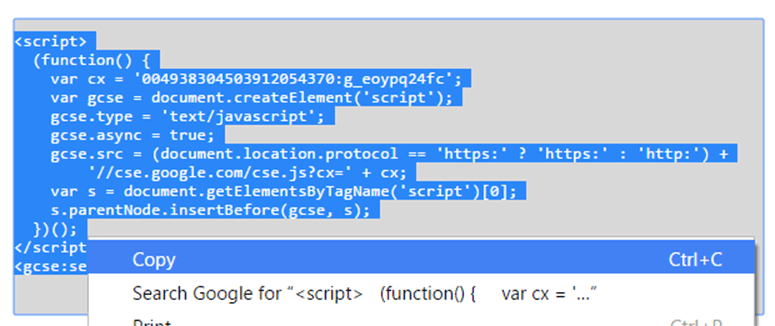
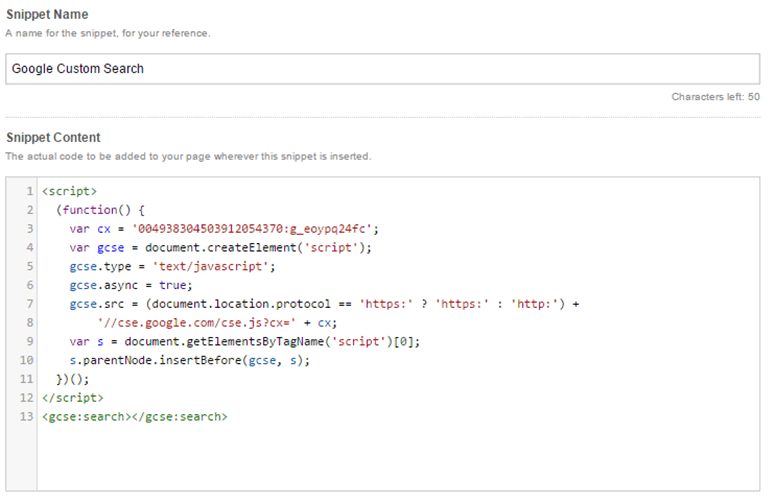
You will now need to copy the HTML code generated by Google and paste it in to the page on which you wish your search facility to appear on your InstantPro Website.

You will now need to login to your MyFreeola account and open the InstantPro Website Builder from within your account.

8. For the tutorial, a new page has been created using the InstantPro Website Builder using the Standard Page type, which is shown in the image below.

Open the InstantPro Website builder
Click to view full-size

The page has been designed with two images and short paragraph explaining the custom search facility. So that the HTML code from Google can be added to the page, it is necessary to click the HTML icon shown along the top of the text editor. This icon has also been highlighted in the example image.

9. Clicking the HTML icon will open the InstantPro HTML editor and will show the HTML code which makes up the web page.

When pasting in the HTML code from Google you will need to ensure that the code is included in the correct place, otherwise the layout of your page could change dramatically!

For more information on reading HTML code please read the InstantPro HTML tutorial and for further HTML reference the HTML basics tutorial will help you further.

In the image below, the Google code which has been added to the page is outlined in red.

InstantPro HTML Editor
Click to view full-size

The code has been pasted in after the content which was already in place on the page. This point was determined by finding the end of the page text in the HTML editor, and inserting the code after all of the closing HTML tags which apply to the page text.

The aforementioned HTML guides will explain HTML code in more detail, but as a general rule HTML code is made up of opening tags and closing tags. The code will need both the opening and closing tags in place to display correctly.

For example: To write two paragraphs in HTML the code would appear as follows:

<p>This is the first paragraph</p> <p>This is the second paragraph</p>

Each paragraph has a opening tag, and a closing tag, which is the opening tag with a / inserted after the < symbol.

Once the code has been added to your page, you will need to click the Update button shown in the bottom right corner of the HTML editor.

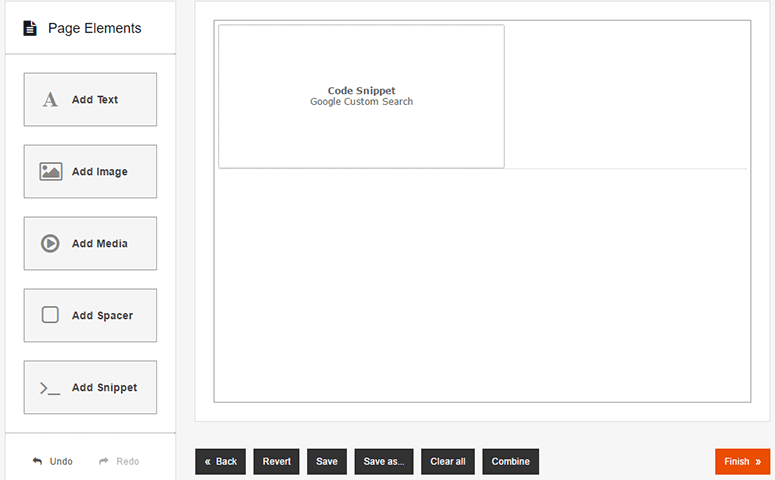
10. You will now be returned to the text editor, where you will see that your Google Custom Search box has now been added to the page.

Google Code added to the page
Click to view full-size

When you view the the page live on the tutorial site it appears as shown below:

Google Custom Search on the live page
Click to view full-size

When a visitor to the tutorials site completes a search the results are displayed in accordance with the settings applied earlier under step 5.

The tutorial site presents search results as shown below:

Google Custom Search results page
Click to view full-size

As you can see from the image above, the AdSense part of the custom search facility is displayed directly below the search query you have entered, with the actual search results displayed below the adverts.

You can adjust where the adverts are displayed through your Google AdSense account.

Finished

You now have your own custom search facility on your InstantPro Website

The custom search facility is available on the InstantPro Tutorial Website to search the available Freeola Support Guides, should you need any further advice.