
Adding a Google Calendar
Last updated on by Freeola Support
Important Information
This guide is for the Freeola InstantPro Website Builder. This service has now been replaced by a more modern product, RQS, and therefore is no longer updated with new features.
To build your website in RQS for free, please click here or visit the RQS Builder section of your MyFreeola Control Panel.
If you use a Google Calendar to manage your events or appointments, you can display this on your InstantPro site.
If you are looking for a way to post availability and appointments, you may be able to use an Availability Calendar Page or a Schedule Page.
This guide explains how to integrate your Google Calendar into your site.
Step 1
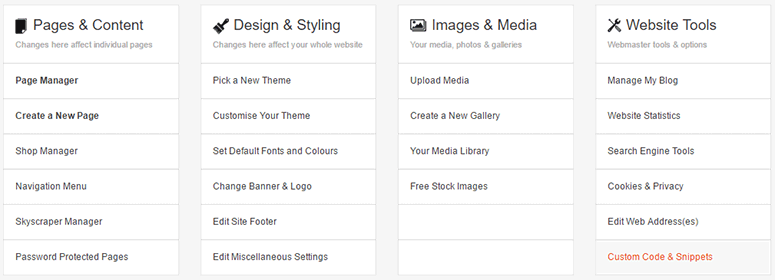
From the Main Menu, select Custom Code & Snippets from under the Website Tools heading.
Step 2
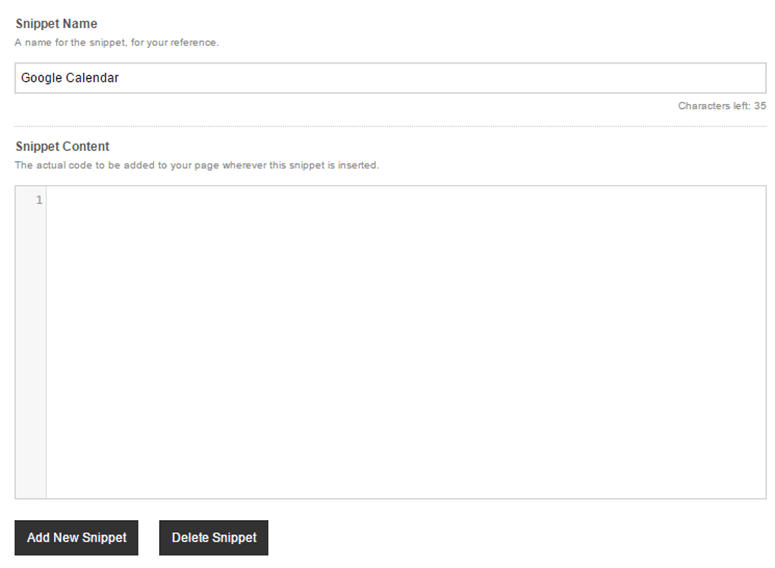
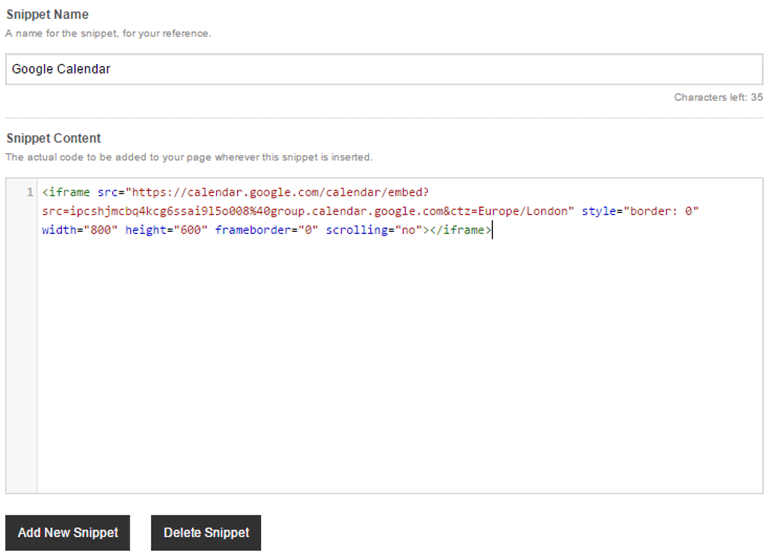
Click the Create New Snippet link. Choose a name for your snippet and enter it into the Snippet Name field.
Step 3
Open a new browser tab and to head to the Google Calendar Site (or click this link). You can use a current calendar or add a specific one for sharing (to omit any personal appointments). If you add a new calendar, add the events to the calendar that you want to appear on your site.
Step 4
Once you've selected your calendar and added your events to it, you'll need to get some code for the snippet.
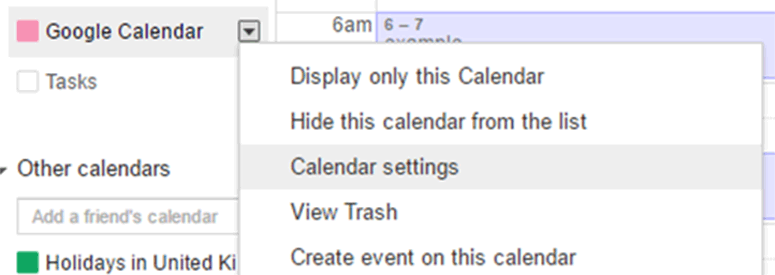
On the left hand side, click the Arrow next to your Calendar Name. Then click the Calendar Settings.
Step 5
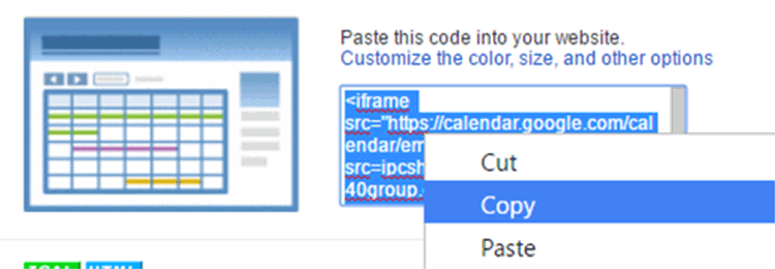
You will now be taken into your Calendar Details. There is an Embed This Calendar section - copy the code from the box in this section.
Head back to InstantPro.
Step 6
Paste the code into the Snippet Content box. Once you are happy with the snippet, click Save and then Finish.
Step 7
From the Main Menu click Page Manager and Edit the page you want to add the Google Map to.
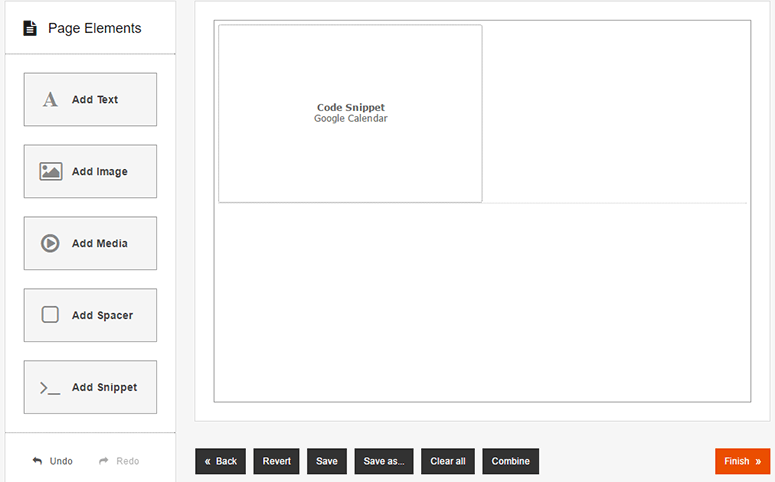
From the Page Elements section, select Add Snippet and drag & drop it to where you would like it to appear on the page. Double click the box to select your snippet, if you have more than one you can choose from the drop-down menu and press Select.

Step 8
Your Snippet Name will now appear in your snippet block and should look similar to the image below in the Drag & Drop Editor. While it appears like this in the Editor, it should appear as a Google Calendar on your live site. Once you are happy press Finish.
If you would like to check that the Calendar is displaying correctly on your site, click the View Website link in the InstantPro header and navigate to the page.
Live Chat is offline
Live Chat is available:
9:30am to 5:30pm Monday to Friday (excluding bank holidays).
It appears you are using an old browser, as such, some parts of the Freeola and Getdotted site will not work as intended. Using the latest version of your browser, or another browser such as Google Chrome, Mozilla Firefox, Edge, or Opera will provide a better, safer browsing experience for you.