
Combining Pages
Last updated on by Freeola Support
6 out of 8 people found this article useful.
Important Information
This guide is for the Freeola InstantPro Website Builder. This service has now been replaced by a more modern product, RQS, and therefore is no longer updated with new features.
To build your website in RQS for free, please click here or visit the RQS Builder section of your MyFreeola Control Panel.
InstantPro allows you to combine pages together to create your own fully customised page. For example you can have an Availability Calendar with a Contact Form so visitors can immediately book your service on an available date without switching page.
Step 1
From the Main Menu, select Page Manager from under the Pages & Content heading. This will take you to list of all your pages on your website.

Step 2
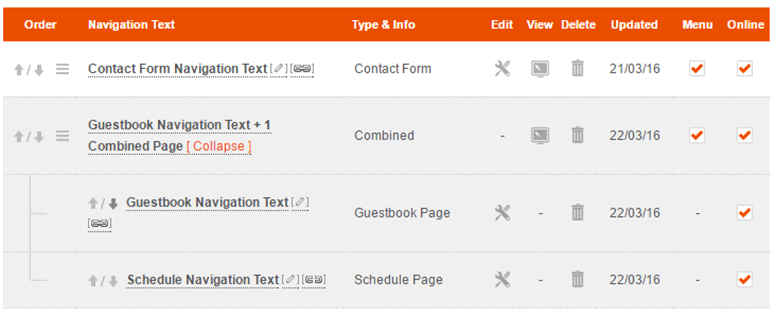
There are 2 ways to combine a page: The first is by selecting the Chain Icon to the right of the Page Name - you will then be asked to pick the page that you wish to combine it with. The second is while editing a page, at the bottom of the page is a Combine button. Again, selecting this will give you the option to choose which page to combine it with.

Managing Combined Pages
The page that you selected to combine from will appear at the bottom of the two pages, but you can easily re-arrange the order. To do this go to the Page Manager and use the small Up & Down Arrows to left of the Page Name to change the order.
Live Chat is offline
Live Chat is available:
9:30am to 5:30pm Monday to Friday (excluding bank holidays).
It appears you are using an old browser, as such, some parts of the Freeola and Getdotted site will not work as intended. Using the latest version of your browser, or another browser such as Google Chrome, Mozilla Firefox, Edge, or Opera will provide a better, safer browsing experience for you.