
Installing WordPress with Freeola
Last updated on by Freeola Support
10 out of 11 people found this article useful.
Welcome to the Freeola Internet customer support pages. This guide is designed to help with installing the Wordpress software with Freeola Hosting. For more Internet help topics please visit our main Support Page.
WordPress is a state-of-the-art publishing platform with a focus on aesthetics, web standards, and usability. WordPress is both free and priceless at the same time. More simply, WordPress is what you use when you want to work with your blogging software, not fight it.
This guide will explain the installation process on our SSD Hosting packages as well as for our legacy VIP Hosting product.
The Softaculous Installer within cPanel offers the quick and easy installation of Wordpress. To access this installer, firstly log into your cPanel by visiting the Websites & Hosting section of your MyFreeola Control Panel then clicking SSD Hosting then Quick Login.
![SSD Hosting in MyFreeola]()
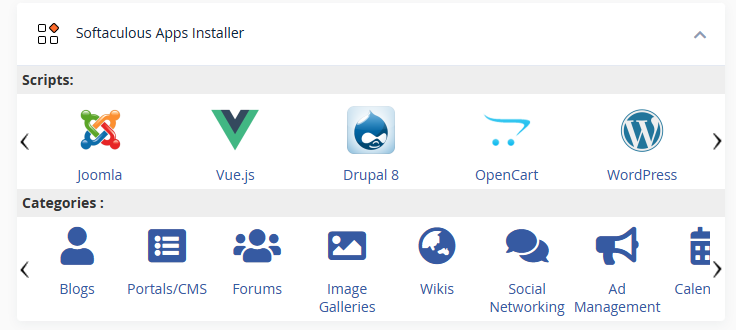
Once logged in, scroll down to the Softaculous Apps Installer section and select Wordpress.
![cPanel Softaculous Window]()
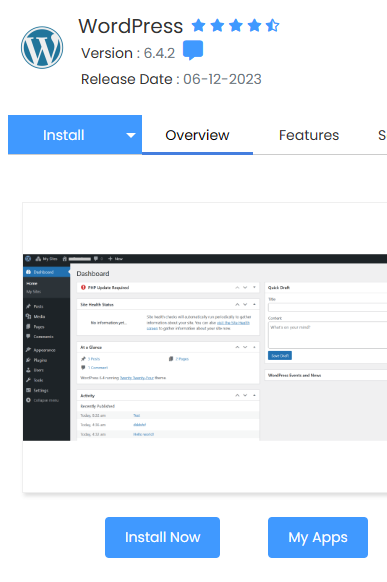
From the window that opens (you can expand to full-screen using the arrows if required) click Install Now.
![cPanel Wordpress Install]()
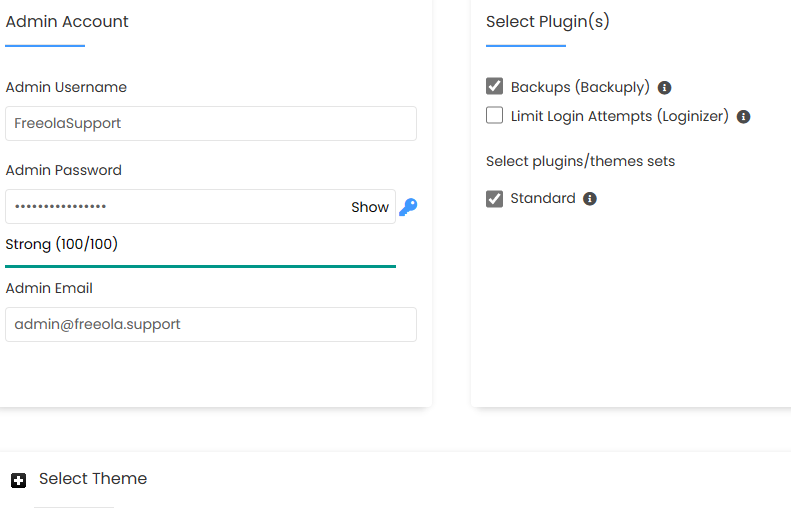
The following page will offer the Wordpress installation options. If you are happy with default settings (suitable for nearly all users) click the Quick Install button. You can now select optional plugins to install and your theme (plugins and themes can still be amended after installation) before clicking Install at the bottom of the page.
![Wordpress Login Details]()
Your admin Username and Password are listed on this page, please note these down as they will be required for the final stage.
It may take a few moments for the software to install in your specified location. Once this has completed, you can finish the installation process by visiting your website (or the sub-folder you installed the software to), with /wp-admin at the end of the URL.
![Wordpress Installation Complete]()
You can now start using your new software.


The SSD WP Hosting subscription comes with Wordpress pre-installed, meaning you can start creating your site content straight away with no further installation steps!
Once you have assigned your domain name, you can log in to your Wordpress Dashboard by visiting the SSD Hosting section of your MyFreeola Control Panel and select Quick Login next to your service.

From the cPanel dashboard, select WordPress Manager by Freeola from the left-hand pane.

Now select Login next to your installation to access your Wordpress dashboard.
Alternatively, you can also log into your Wordpress Dashboard from the Wordpress Login Page (/wp-admin after your domain name).
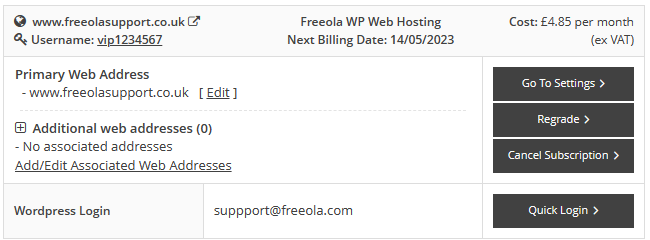
As with SSD WP Hosting, the Freeola WP Hosting subscription also comes with the CMS fully installed automatically.
Once you have subscribed to the service and assigned this to your Freeola domain name, simply visit your Wordpress Login page (yourdomain.com/wp-admin) or use the Quick Login option available within your MyFreeola account to access the Wordpress CMS.
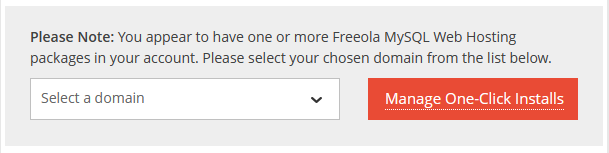
Freeola's One Click Install service allows the installation and use of Wordpress without any manual installation. Our One Click Installers are available to all subscribers of Freeola MySQL Web Hosting at no additional cost and can be accessed from the One-Click Installs link found under the Web Sites & Hosting heading within MyFreeola.
Once on this page select your Domain Name from the drop-down menu, then Manage One-Click Installs.

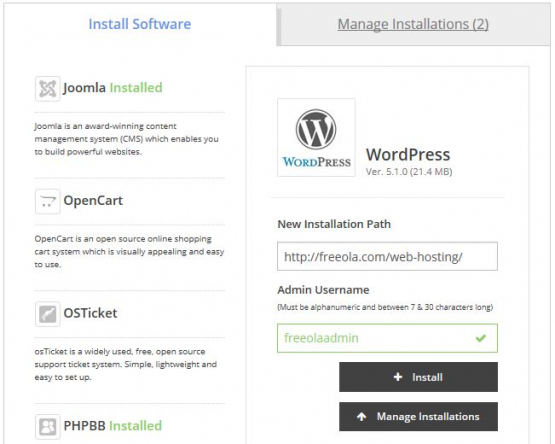
While on the Install Software tab (selected by default) select Wordpress.
- The Installation Path field should already be pre-filled with your primary web address and should be left as default. Should you so wish, you can install your software into sub-folders.
- An Admin Username should also be created. We would advise something memorable as this will be used to log you into the software management.
Click Install to add the software.
You will now be presented with a confirmation box, click OK to proceed. The software will now be installed.
After being taken back to the One Click Install page, take note of the Important Information box as this will confirm your Admin Username and Password, this will be required to log into and administer your software.
To start using Wordpress on your website you will now need to visit the admin page and log in.
If you left the installation directory as default, this will simply be your website address followed by '/admin' (e.g. https://freeola.com/admin) although you can also navigate to this page from the Manage Installations tab on the One Click Install page within MyFreeola.
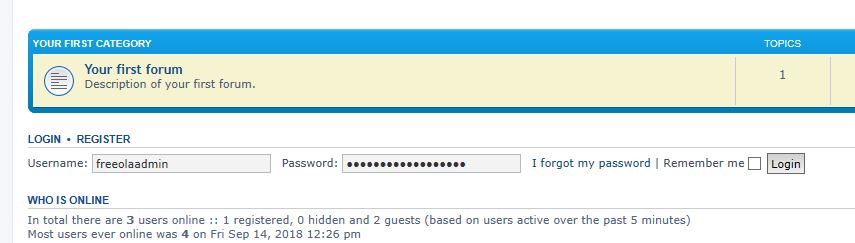
Once on the page you will be presented with a prompt to login, simply enter your Administrative Details to login and start using your new software.


Live Chat is offline
Live Chat is available:
9:30am to 5:30pm Monday to Friday (excluding bank holidays).
It appears you are using an old browser, as such, some parts of the Freeola and Getdotted site will not work as intended. Using the latest version of your browser, or another browser such as Google Chrome, Mozilla Firefox, Edge, or Opera will provide a better, safer browsing experience for you.