
Contact Forms For Your Website
Last updated on by Freeola Support
10 out of 11 people found this article useful.
Welcome to the Freeola Internet customer support pages. This guide is designed to help with creating a PHP formmail script for your website. For more internet help topics please visit our main Support Page.
Freeola now offers a PHP form mail script for customers to use, this script will allow the contents of any form which you create, no matter how many fields you set up, to be submitted to your Freeola e-mail account.
Freeola can provide you with a basic form to use or you can create your own.
Click here to view the form code
The following instructions assume a working knowledge of how to create web pages, web forms and general FTP/uploading issues.
Once you have created your form you will need to set the action to connect to the form mail script. Open your form in a text editor such as Notepad, Notepad++ or whichever text editor you favour.
If, for example, your domain name is freeola.com the action will look like this:.
<form method="post" action="http://freeola.com/cgi-bin/form_to_mail.php">
Recipients
Next you will need to set the recipient e-mail address.
For anti-spamming reasons this must be an e-mail address hosted on the Freeola servers.
If, for example, the address you wish to receive the e-mail on is [email protected], the recipient tag will look like this:
<input type="hidden" name="recipient" value="[email protected]">
From
You must also set the from field - this will be reflected in the From: field in your mail client, i.e. the sender of the email. So if you have more than one form you can easily see which is which.
This must be set to a valid Freeola hosted e-mail address.
<input type="hidden" name="from" value="[email protected]">
Required Fields
You can require certain fields in your form to be filled in before the results will get e-mailed to the recipient.
Let's say you have a field called email_address and you don't want the form to send you an e-mail unless the visitor has filled in this section of the form. Enter the following code in the form and the form will return an error informing the viewer to fill in this section:
<input type="hidden" name="require" value="email_address">
You can add more than one required field by separating them with a comma:
<input type="hidden" name="require" value="email_address,name">
Redirecting
Once the viewer has filled in the form and sent the e-mail, you can redirect the viewer to a thank you page. If you created a thank you page called thank_you.html, you can redirect the viewer by adding the following code to your form:
<input type="hidden" name="success_redirect" value="http://yourdomain.com/thank_you.html">
Please Note
You will be required to enter the full URL of the page in question in order for this step to work correctly.
We have added some extra, optional, features to the Freeola provided script. These options will allow you to personalise the script and obtain more information about which users have used your form. Your existing scripts should continue to run without alteration, however if you wish you can selectively add in the new options.
Spam Prevention via a Captcha Image
Within your form you now have the option to specify that you want a verification page displayed before the email is sent, this will ask the user submitting the form to enter some numbers and letters as displayed on the screen before the submission will go through correctly. This is useful to stop spammers from using scripts to automatically send large volumes of email. This is also known as a PHP Captcha Image and is widely recognised as being one of the most effective ways of preventing unwanted replies from this form.
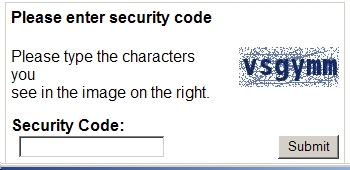
To include this in your form you will need to add the following to your form section.
<input type="hidden" name="captcha" value="yes">
This will add a screen similar to the screenshot above which will not allow the person using the form to submit it without specifying the correct details.
User Agent Details
The next new option is the ability for the server to send user agent details with the email that is sent. This can be useful for finding more information about the users who are using the script, including information such as the IP address of the machine visiting the page, the Operating System (OS) they are using as well as which web browser they are using to view your web page. To enable this, simply include the information below in your form, and the additional information will be included with the email that is sent.
<input type="hidden" name="env_report" value="yes">
Further Customisation
The next option allows you to further customise what a visitor to your site will see when they have not entered data in all the required fields.
Include the information below in your form, and change the http://www.mywebsite.com/missing_fields.html to be the URL of the page you have created. Please note that unless you have included the required fields option from above this will have no effect.
<input type="hidden" name="missing_fields_redirect" value="http://www.mywebsite.com/missing_fields.html">
The last of the new options allows you to specify a webpage for the visitor to see if for some reason the mail is not able to be sent. As before, change the http://www.mywebsite.com/missing_fields.html to be the URL of the page you have uploaded, and include the result in your form section.
<input type="hidden" name="fail_redirect" value="http://www.mywebsite.com/email_could_not_be_sent.html">
Live Chat is offline
Live Chat is available:
9:30am to 5:30pm Monday to Friday (excluding bank holidays).
It appears you are using an old browser, as such, some parts of the Freeola and Getdotted site will not work as intended. Using the latest version of your browser, or another browser such as Google Chrome, Mozilla Firefox, Edge, or Opera will provide a better, safer browsing experience for you.