
Microsoft Outlook - Backup & Restore
Last updated on by Freeola Support
Welcome to the Freeola Internet customer support pages. This guide is designed to help with ensuring that you fully back up your mail client, Microsoft Outlook, should you need to upgrade your mail service.
For steps on restoring an already backed up file to Outlook, please see the bottom of this page.
It is not currently possible to backup mail in this version of Outlook.
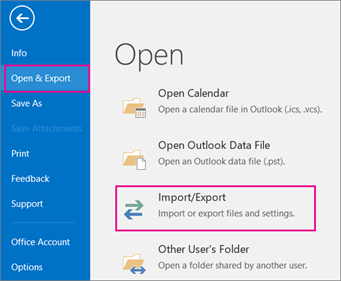
At the top of your Outlook ribbon, choose File.
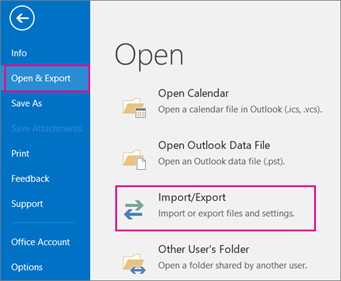
Choose Open & Export then Import/Export.

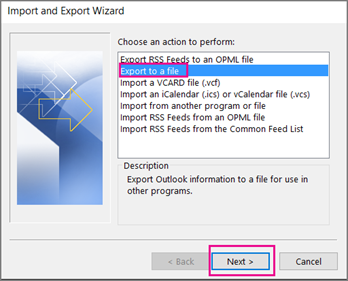
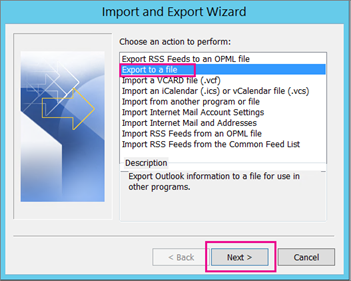
From the new window choose Export to a file then Next.

Click Outlook Data File (.pst) then Next.
Select the name of the email account to export and make sure that the Include subfolders check box is selected. This ensures that everything in the account will be exported: Calendar, Contacts, and Inbox. Choose Next.
Click Browse to select where to save the Outlook Data File (.pst). Enter a file name - we would recommend something easily identifiable - and choose OK to continue.
If you are exporting to an existing Outlook Data File (.pst), under Options, specify what to do when exporting items that already exist in the file.
Choose Finish.
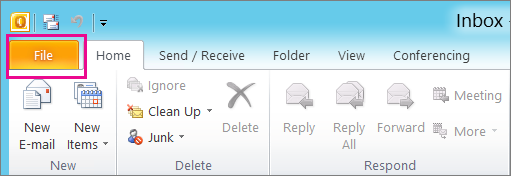
At the top of your Outlook ribbon, choose the File tab.

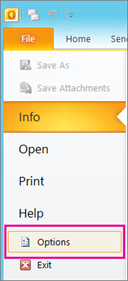
Choose Options. In the Outlook Options box, choose Advanced.

Under the Export section, choose Export.
Choose Export to a file, then Next.
Choose Outlook Data File (.pst), then Next.
Select the name of the email account to export. Make sure that the Include subfolders check box is selected. This ensures that everything will be exported: Calendar, Contacts, and Inbox.
Choose Next.Click Browse to select where to save the Outlook Data File (.pst). Enter a file name - we would recommend something easily identifiable - and choose OK to continue.
If you are exporting to an existing Outlook Data File (.pst), under Options, specify what to do when exporting items that already exist in the file.
Choose Finish.
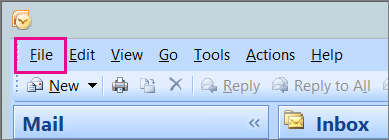
In Outlook 2007, at the top of your ribbon, choose File.

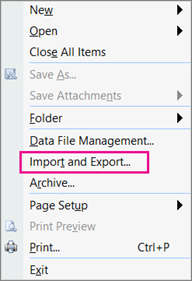
Choose Import and Export.

Select Export to a file, then choose Next.

Click Personal File Folder (.pst) then Next.
Select the name of the email account to export. Make sure that the Include subfolders check box is selected. This ensures that everything will be exported: Calendar, Contacts, and Inbox.
Choose Next.
Choose Browse to select where you want to save the Outlook Data File (.pst). Enter a file name - we would recommend something easily identifiable - and choose OK to continue.
Click Finish.
Restoring your data from a .PST file is the same process regardless of which version of the Outlook software you are using, although there will be some subtle text and styling differences between them.
Open up Microsoft Outlook.
At the top of your Outlook ribbon, select File.
Select Open & Export then Import/Export. This starts the Import/Export wizard.

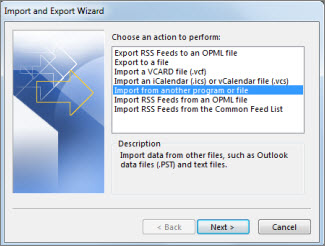
From the new window, select Import from another program or file, and then click Next.

Select Outlook Data File (.pst) and click Next.
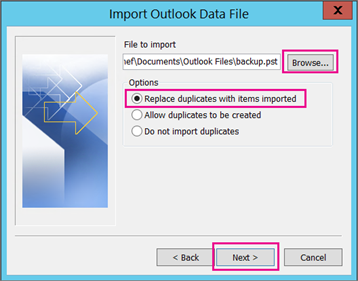
Browse to the .pst file you want to import. Under Options, choose how you want to deal with duplicate emails and contacts, if any, then choose Next.

If you chose to set a password to the Outlook Data File (.pst) when creating this, enter the password, and then click OK.
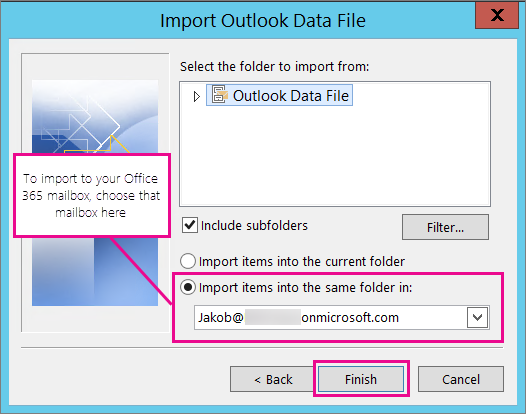
If you're importing the contents of your .pst file into your Office 365 mailbox, choose that mailbox here.
If you're NOT importing into your Office 365 mailbox, choose Import items into the current folder. This imports the data into the folder currently selected.

Choose Finish. Outlook starts importing the contents of your .pst file immediately. When the progress box disappears, the import is finished.
Live Chat is offline
Live Chat is available:
9:30am to 5:30pm Monday to Friday (excluding bank holidays).
It appears you are using an old browser, as such, some parts of the Freeola and Getdotted site will not work as intended. Using the latest version of your browser, or another browser such as Google Chrome, Mozilla Firefox, Edge, or Opera will provide a better, safer browsing experience for you.