
Setting up Freeola Email in Outlook Express
Last updated on by Freeola Support
4 out of 7 people found this article useful.
This guide is designed to help with setting up a Freeola email address within Outlook Express. For more internet help topics please visit our main Support Page.
These instructions should be relevant to all versions of Microsoft Outlook Express (now discontinued by Microsoft). There may be slight visual/wording differences between versions but the underlying procedure is the same.
Before Continuing
Please visit your MyFreeola account and make a note of the following information before continuing, you'll need to know this for later on in the guide:
1 - What protocol your e-mail address is set up to use (IMAP or POP3).
2 - What service is assigned to your e-mail address (EmailPro, Free Email or One Address).
3 - Your e-mail address password.
You can find this information by clicking Email Settings in the left-hand navigation in MyFreeola, then My Email Addresses. You should then be able to click Settings & Features button next to the relevant e-mail address to view all required email settings.
Load Outlook Express.
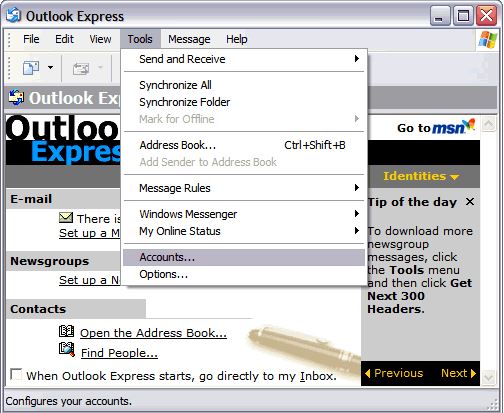
From the menu bar select Tools, then Accounts.

In the window that opens, select the Mail tab if it is not selected already. Click Add and then select Mail from the drop-down list.

Next enter the name you want to appear on outgoing e-mails from you in the Your Name field. For example if your name is John Smith you may want to enter 'John Smith' or 'Mr J Smith' within this field. Click on Next to continue.
On the next screen enter the Freeola e-mail address you wish to add and click Next.
You now be shown a window headed E-mail Server Names:
My Incoming Mail Server is a: Select POP3 or IMAP depending on the type of account you have.
Incoming mail server: should be in the format of yourdomainname.freeolamail.net where 'yourdomainname' is your domain name with any dots ( . ) replaced with hyphens ( - ).
For example, if your domain name was freeola.co.uk, the incoming mail server would be freeola-co-uk.freeolamail.net.
Outgoing mail server: Should be set to smtp.freeolamail.net.
Please Note: This server is only accessible if you are subscribed to our EmailPro or One Address services or are using a Freeola Internet connection.
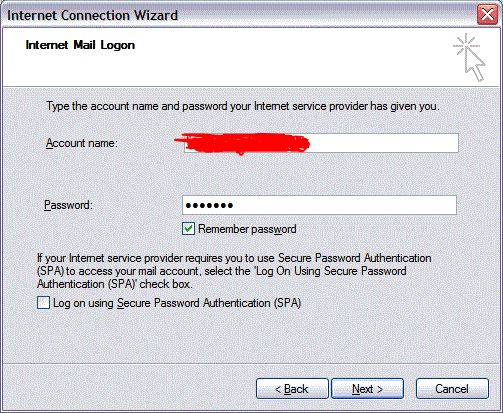
Click Next.In Account Name enter your full e-mail address.
Password: Should be the e-mail password you made a note of earlier.
On the confirmation page select Finish.
In order to send messages using Freeola EmailPro or One Address you will need to now enter an Outgoing Username and Password. The previous step should have left you at the Mail tab (if not, Steps 1 and 2 of this guide will help you return here). Select your new account then click Properties.

Select the Servers tab then tick the option My Server Requires Authentication.
Now select the Advanced tab, and under the Server Port Numbers heading make the following adjustments:
Outgoing Mail (SMTP): 465.
Tick the option This server requires a secure connection.
Incoming Mail: 995 for POP accounts, 993 for IMAP accounts.
Tick the option This server requires a secure connection.
Now click OK then Close to save your changes and return to your Inbox. If your account doesn't automatically begin downloading your messages, click the Send/Receive icon to begin this process manually.



Live Chat is offline
Live Chat is available:
9:30am to 5:30pm Monday to Friday (excluding bank holidays).
It appears you are using an old browser, as such, some parts of the Freeola and Getdotted site will not work as intended. Using the latest version of your browser, or another browser such as Google Chrome, Mozilla Firefox, Edge, or Opera will provide a better, safer browsing experience for you.