
Setting up Freeola Email on an Android Device
Last updated on by Freeola Support
6 out of 11 people found this article useful.
Welcome to the Freeola Internet customer support pages. This guide is designed to help with setting up a Freeola email address on the standard mail application on an Android device. For more internet help topics please visit our main Support Page.
Please Note
This guide was written for early versions of the Android OS and, as such, may not be relevant for modern versions of the software.
For modern Android versions, we provide a series of guides on our Email Help pages including, but not limited to, Gmail App, Samsung Mail, Outlook Mobile and Edison.
To configure Freeola email addresses on Android, you need to select the Email button from the main menu and then press Next.
You will now be prompted for your e-mail address and your e-mail account password, simply type these into the necessary fields and press Next.
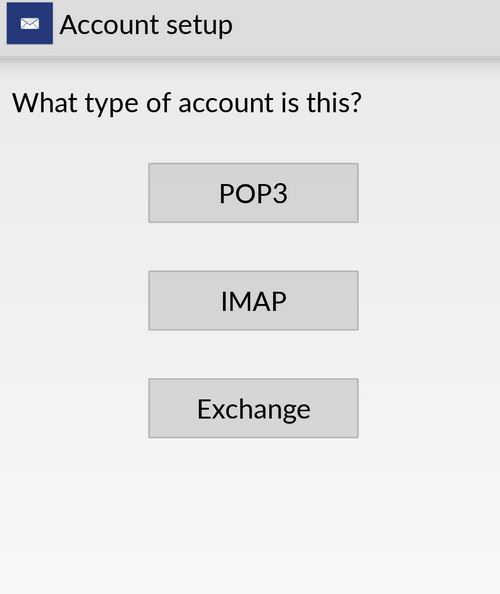
If you are given the option for Push Notification, you will need to ensure that this is Not Ticked.From the list of account types, press the IMAP or POP3 button, depending on the setting in your MyFreeola account.

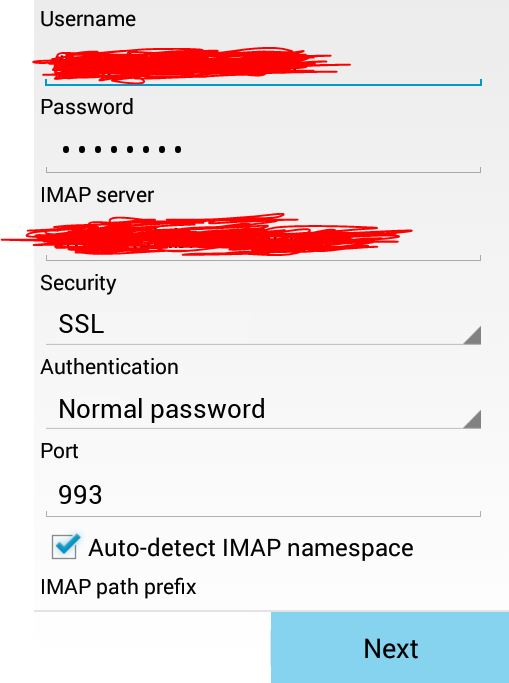
You will now be asked for your Email Account information:
- The Username field will be your email address.
- The Email Account password should be entered within the Password field.
- Incoming Server will be in the format of yourdomainname.freeolamail.net where 'yourdomainname' is your domain name with any dots ( . ) replaced with hyphens ( - ).
For example, if your domain name was freeola.co.uk, the incoming mail server would be freeola-co-uk.freeolamail.net.
- Security should be SSL.
- Authentication should be set to Normal Password.
- For a POP account, the Port Number should be 995 and IMAP accounts should be 993.
The other options on this page are not necessary, when you are happy with your details press Next.If your details are correct, then you will be asked for your outgoing e-mail server details. This should be set to:
- smtp.freeolamail.net for the SMTP Server.
- Security should be SSL.
- Port should be 465.
- You will need to enable the option Require Sign In, and type your E-mail Address and Password into the stated fields. Once you are happy with your details, press Next.
Please Note: This server is only accessible if you are subscribed to our EmailPro or One Address services or are using a Freeola Internet connection.Your Android device will now establish whether the details you have entered are correct, if they are you will be able to download your messages and send messages from your Freeola Email Address.
Live Chat is offline
Live Chat is available:
9:30am to 5:30pm Monday to Friday (excluding bank holidays).
It appears you are using an old browser, as such, some parts of the Freeola and Getdotted site will not work as intended. Using the latest version of your browser, or another browser such as Google Chrome, Mozilla Firefox, Edge, or Opera will provide a better, safer browsing experience for you.