
Changing Your DNS Servers
Last updated on by Freeola Support
13 out of 18 people found this article useful.
Welcome to the Freeola Internet customer support pages. This guide is designed to help with changing the DNS (Domain Name Servers) for a Freeola hosted domain name. For more internet help topics please visit our main Support Guides Page.
If you need to use domain hosting services provided by a different company, and you do not wish to transfer management of the domain name to them, you can change the DNS servers. Freeola currently offers its domain customers the option of completing a full DNS change, A, CNAME or MX Record change or creating a subdomain. This guide is designed for a full DNS change, if you were looking to make a more advanced, A, CNAME or MX Record change, or wish to set-up subdomains, please click here.
The following procedure assumes that you are already logged into your MyFreeola account.
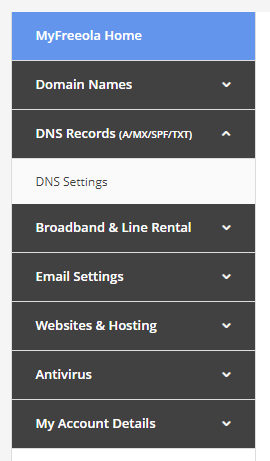
From the left-hand menu select DNS Records (A/MX/SPF/TXT) then DNS Settings.
![MyFreeola DNS Settings]()
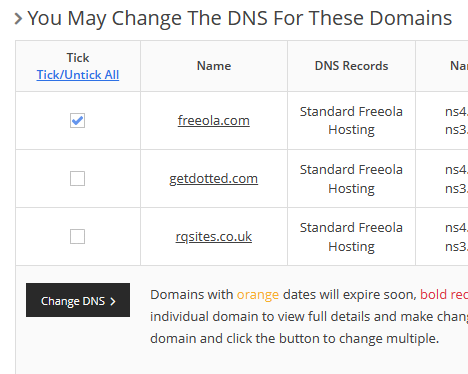
On the next page tick the box next to the domain you wish to alter then click the Change DNS button.
![MyFreeola Change DNS]()
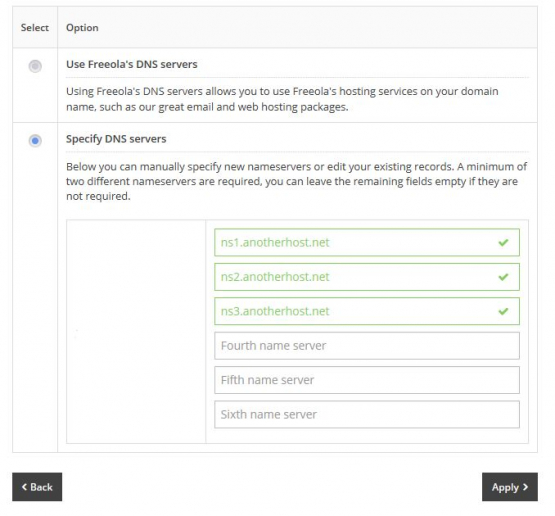
From the selections offered select Change DNS Servers then click Next. On the following page, select the Specify DNS servers option.
Enter both the name servers you have been given - minimum two, up to six - within the relevant fields, if you wish to change the DNS back to Freeola simply tick the box labelled Use Freeola's DNS servers.

Click the Apply button to save your changes.
Please Note
All DNS server changes can take up to 24 hours to fully complete, but most are usually in place within an hour or two.
Live Chat is offline
Live Chat is available:
9:30am to 5:30pm Monday to Friday (excluding bank holidays).
It appears you are using an old browser, as such, some parts of the Freeola and Getdotted site will not work as intended. Using the latest version of your browser, or another browser such as Google Chrome, Mozilla Firefox, Edge, or Opera will provide a better, safer browsing experience for you.