
D-Link DSL-G624T Router Setup Guide
Last updated on by Freeola Support
Welcome to the Freeola Internet customer support pages. This guide is designed to help with setting up your D-Link DSL-G624T router to work with Freeola Broadband. For more internet help topics please visit our main Support Page.
Your router may need to be configured with a few details before it can work with Freeola Broadband. The router needs to be configured via your web browser.
This router is no longer offered by Freeola and the hardware no longer compatible with modern connection technology, however this page has been kept for prosperity for those that may still be using comaptible products.
Connect your router to the telephone line using an RJ-11 cable and microfilters.
Now connect the router to at least one computer via an Ethernet cable (we do not recommend using the USB option). The network connection on the computer should be set to automatically look up an IP Address via DHCP (don't worry - if you're using a modern version of Windows and you've never used your network connection before, it's most likely already set up to do this).
On the computer connected to the router, load your internet web browser and visit the following internet address: http://192.168.1.1. This will open up the router's own configuration pages. You will need to type in the default username and password to access it. By default, both the username and password will be admin.
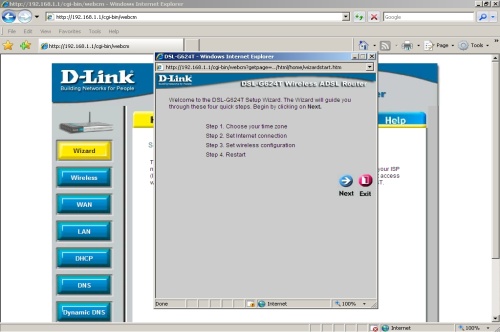
Select Run Wizard from the centre of the page. This will generate a pop-up similar to that shown below.

Select Next on the first page to begin the set-up wizard. On the second page select GMT, then Next.
On the following page please select PPPoE/PPPoA and then select Next.
This next page asks you to input your broadband connection details.

Please ensure that fields correspond as follows:
User Name: in the format: [email protected], [email protected] or [email protected].
Password: Your password as provided in your broadband welcome pack.
ATM VPI: 0
ATM VCI: 38
Connection Type: PPPoA VC-Mux
On this next page you will decide the SSID of your wireless network. This is down to your own preference. On dispatch from Freeola this is set to Freeola. However after a factory reset it will default to "DLINK_WIRELESS". Freeola pre-sets your router to use a "WPA" wireless encryption. Freeola provides a individual randomly generated encryption key with each pre-configured wireless router which you will find in your Freeola Broadband documentation. Other options are down to your preference. We do not advise you to use the router without a wireless encryption option enabled as this can lead to unauthorised access of your wireless network. Once this section is complete select Next.
Select Restart. This will save the settings and re-boot the router. This completes the Wizard and will allow you to connect to the internet using your Freeola Broadband connection.

Live Chat is offline
Live Chat is available:
9:30am to 5:30pm Monday to Friday (excluding bank holidays).
It appears you are using an old browser, as such, some parts of the Freeola and Getdotted site will not work as intended. Using the latest version of your browser, or another browser such as Google Chrome, Mozilla Firefox, Edge, or Opera will provide a better, safer browsing experience for you.