
Netgear DG834PN Setup Guide
Last updated on by Freeola Support
3 out of 3 people found this article useful.
Welcome to the Freeola Internet customer support pages. This guide is designed to help with setting up your router to work with Freeola Broadband. For more internet help topics please visit our main Support Page. If you would like an explanation of the various lights found on this router, please click here or scroll to the bottom of the page.
These instructions apply to the Netgear DG834PN ADSL Modem Router. The settings may also apply to other Netgear router models.
Connect your router to the telephone line using an RJ-11 cable and a microfilter. Now connect the router to at least one computer via an Ethernet cable. The network connection on the computer should be set to automatically look up an IP Address via DHCP (don't worry - if you're using a modern version of Windows and you've never used your network connection before, it's most likely already set up to do this).
On the computer connected to the router, load your internet web browser and visit the following internet address: http://192.168.0.1, this will open up the routers own configuration pages. You will need to type in the username and password to progress further, by default, these are admin and password respectively.
Once you have entered this information you will have access to the internal software within the router and should be presented with a Set-up Wizard to help guide you through configuring the hardware. On this page ensure you select UK and English for Country and Language respectively. You also need to select No under the Auto-detect header, click Next to continue.
The next section should take you through the Basic Settings required for your router to access the internet. The Connection Type should be set to PPPoA, this page also requires you to enter your username and password within the relevant fields. The User Name will be in the form of [email protected], [email protected] or [email protected]. The Password will, by default, be a random string of characters assigned by Freeola.
This information will be listed within your MyFreeola account under the Broadband Details section.Within the VPI and VCI fields, enter the values 0 and 38 respectively. Do NOT tick any box saying Static IP address, instead ensure that this setting is dynamically obtaining this information from the server by selecting the Internet Address Get Dynamically from ISP option.
Once this information has been entered, please confirm the settings which should force your router to save and reboot the newly entered information. After a couple of minutes your router will fully power up allowing you connection to the internet via Freeola.
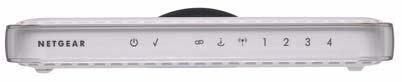
You can use the LEDs on the front of the router to verify various conditions or troubleshoot any issues that may be occurring. The table below describes each LED and what each status means, each icon is listed as running from left to right.
|
Label |
Activity | Description |
| Power | On Off |
Power is supplied to the router. Power is not supplied to the router. |
| Test |
On Off |
The system is initializing. The system is ready and running. |
| PPP Link |
On Off |
The ADSL link is active. The ADSL link is inactive. |
| Internet |
Blink - Amber On - Green Blink - Green |
Indicates ADSL Training. The internet port has detected a link within the attached device. Data is being transmitted or received by the internet port. |
| Wireless |
On Off |
Indicates that the Wireless port is initialized. The Wireless Access Point is turned off. |
| Lan (1 thru 4) |
On (Green) Blink (Green) On (Amber) Blink (Amber) Off |
The Local port has detected a link with a 100 Mbps device. Data is being transmitted or received at 100 Mbps. The Local port has detected a link with a 10 Mbps device. Data is being transmitted or received at 10 Mbps. No link is detected on this port. |
Live Chat is offline
Live Chat is available:
9:30am to 5:30pm Monday to Friday (excluding bank holidays).
It appears you are using an old browser, as such, some parts of the Freeola and Getdotted site will not work as intended. Using the latest version of your browser, or another browser such as Google Chrome, Mozilla Firefox, Edge, or Opera will provide a better, safer browsing experience for you.